47-Day Validity Readiness TLS Certificates dashboard
The 47-Day Validity Readiness TLS Certificates dashboard helps you prepare for upcoming certificate renewal surges resulting from the CA/Browser Forum’s new TLS Baseline Requirements. This dashboard visualizes the impact of those changes, projects renewal volumes, and recommends next steps for automation.
The TLS Certificates dashboard displays a variety of certificate insights. Click All Active Certificates at the top of the dashboard and select one of the following filters:
- All Active Certificates
- Active Public Certificates
- Active Non-Public Certificates
Note
Click Download PDF in the top right corner of the dashboard to download a comprehensive PDF of your current CA/B Readiness TLS Certificates dashboard metrics.
Warning
Starting in 2026, the maximum certificate lifespan will reduce in multiple phases—from 398 days to just 47 days by 2029.
Purpose
The dashboard provides visibility into:
- How certificate lifespans will change by mandate deadline
- When those mandates take effect
- How many certificates you’ll need to renew and when
- How to reduce operational risk through early preparation and automation
TLS Certificates dashboard widgets and features
The 47-Day Validity Readiness Dashboard offers various insights into your certificate validity readiness. Refer to the following subsections to learn more about these insights:
Why certificate lifespans are shortening
This section outlines the background behind the CA/B Forum’s phased reductions in TLS certificate validity. It includes:
- Current validity: 398 days
- Phase 1 (March 15, 2026): 200 days
- Phase 2 (March 15, 2027): 100 days
- Phase 3 (March 15, 2029): 47 days
Mandate deadline
Displays a countdown to each mandate phase:
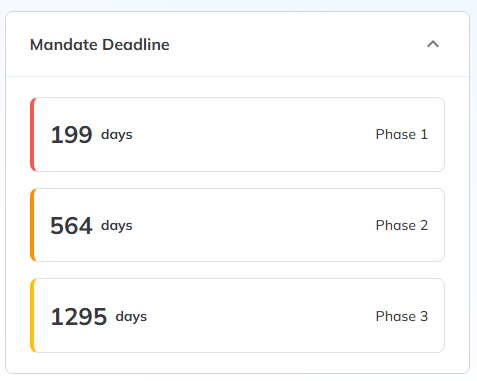
Use this information to prioritize migration efforts and policy changes.
Renewal impact projection (Phase 1)
This section highlights the total certificates projected to be affected by the upcoming 200-day limit in Phase 1:
- After Phase 1: Over 200 Days
- After Phase 1: 200 days or less
- Renewing before Phase 1
This breakdown helps identify which certificates are non-compliant under the upcoming rules.
Note
Click the number of certificates projected for renewal impact to redirect to the Certificates TLS Certificates dashboard.
Projected certificate renewals (2025–2029)
Forecasts how many certificates will need renewal each year based on your current inventory and the phased CAB requirements:
Note
Renewals increase as certificate validity periods shorten and existing inventory nears expiration. Plan ahead to prevent disruptions.
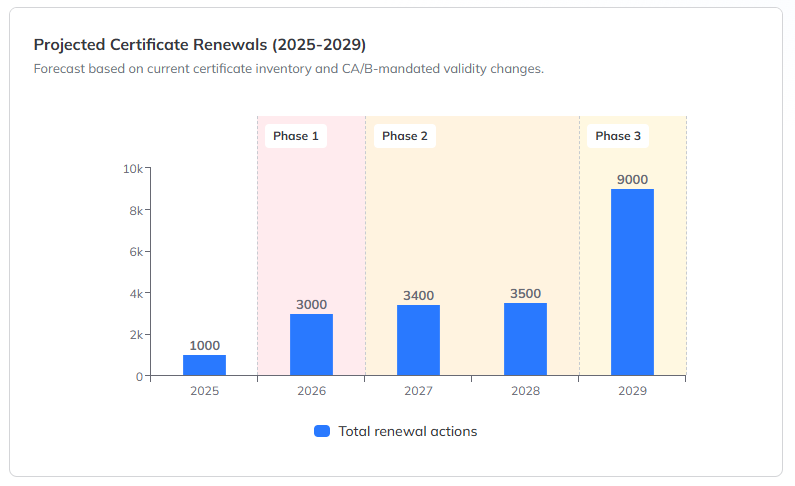
Phase-specific bands in the chart visually separate how each CAB requirement phase will affect renewal frequency.
Top CAs with certificates impacted by Phase 1
Highlights the certificate authorities (CAs) with certificates exceeding Phase 1 validity impact. If no data is displayed, it means none of your currently inventoried certificates from public CAs will be out of compliance during Phase 1.
Active request policies that need validity changes
This section identifies request policies that are out of alignment with the upcoming CA/Browser Forum certificate lifespan mandates. Request policies are ranked by the number of certificates they issue, helping you prioritize updates.
Select any of the following filters above the chart to view request policies with certificates in different validity ranges:
- Over 200 days
- 100–199 days
- 48–99 days
Note
To prepare for the upcoming certificate lifecycle changes, connect to your CA to establish communication for managing validity and renewal policies. Next, create a request policy that aligns with CAB requirements. Finally, set up an application and configure it for auto-renewal to streamline future certificate renewals. Use the Connect button to begin the setup process. For more information on adding Certificate Authorities, refer to Adding a certificate authority
Requested Via
This section breaks down your certificates by the client or method used to request them. Built-in values include VCert, Terraform, Ansible, cert-manager, ACME, API, Manual UI, or Auto-Renewal. Use it to see how much of your certificate volume is already automated and to identify certificates that are still requested manually as you plan for shorter validity periods.
The Requested Via value is captured when a certificate is requested or issued, and it also appears as a column in the Certificate Inventory. Certificates issued before this feature became available are backfilled where the requesting source can be identified. Certificates whose source can't be determined are left blank.
The dashboard uses the Requested Via value in two charts. Each chart has a date-range selector (all dates, or the last 7, 30, or 90 days), and you can select a value to open the Certificates inventory filtered to those certificates.
Issuance Automation Coverage
This chart shows how many of your certificates were requested manually versus through automation, trended over time. Certificates are grouped into two categories:
- No Automation—Certificates requested manually, with no client or platform automation.
- Automated—Certificates requested through automatic renewal or a client automation tool, such as VCert, cert-manager, Terraform, or ACME.
Certificates that have no Requested Via value aren't counted in either category.
Automated Issuance Methods
This chart breaks down your automated certificates by the specific tool or method used to request them. The three most-used methods appear individually, and any remaining methods are grouped together as Others. Certificates requested through the different VCert tools are combined into a single VCert entry.
These charts measure issuance, not provisioning
Automation coverage here reflects how your certificates are requested and issued—for example, through VCert or automatic renewal. It doesn't indicate whether those certificates have been provisioned (installed) to the machines or Cloud Keystores that use them. A certificate can be renewed or re-issued automatically and still not be provisioned to its endpoint, so a high automation percentage doesn't on its own confirm that the certificate is in place and in use. To automate provisioning as well, see Installations.
Identify your own tool in Requested Via
If you request certificates through your own tooling and want it identified as the Requested Via value, include an apiClientInformation object in the body of your certificate request. Set type to the name you want displayed:
{
  "apiClientInformation": {
    "type": "My Automation Tool"
  }
}